







Sending a proposal is more than just attaching a file. It's the start of a critical conversation. While the basic dropbox gmail integration helps you get around file size limits, it leaves you completely in the dark. You hit send and start wondering: Did they open my document? Which pages did they actually read? A simple link from Dropbox for Gmail can't answer these questions. This guide shows you how to add Dropbox to Gmail to get the intelligence you need on every file you share.
If you’re a fan of Dropbox or Box, we know how frustrating it can be to attach files from those services into Gmail. With Mixmax, you can insert files from Dropbox and Box, and of course, Google Drive. This means you can share files from your favorite services, no matter where they are stored.
How Does Dropbox Work with Gmail?
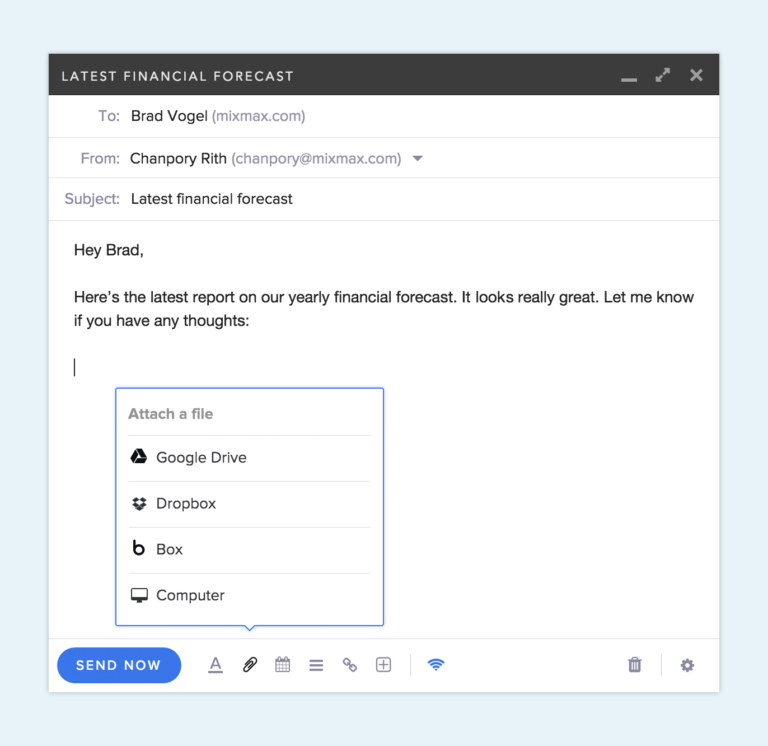
To attach a file, hover over the paperclip icon in the bottom toolbar of your compose window. You’ll see a menu with options for Google Drive, Dropbox, Box, and your computer. Once you select an option, a window will appear where you can browse and select the file to insert into your message.
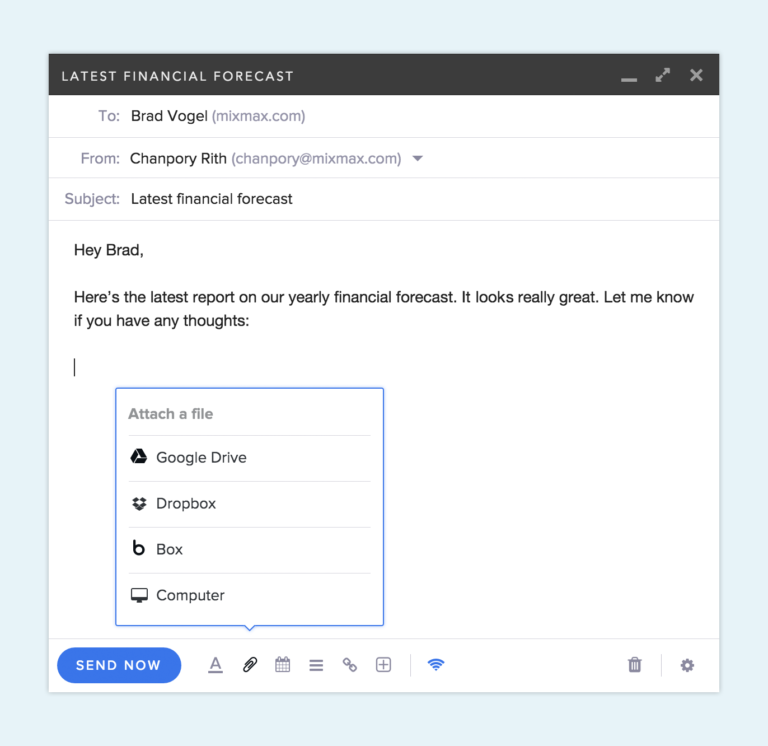
After you select a file, your attachment will appear beautifully in your message.
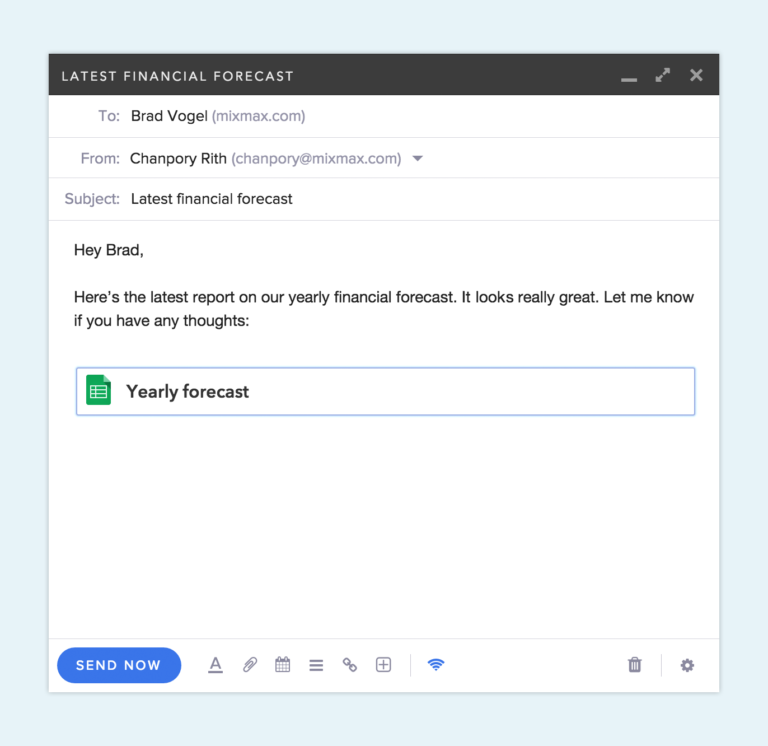
Install for free to try it out Dropbox, Box, and Google Drive integration right now. Better attachments is just one of the many ways Mixmax boosts your productivity with email. We’d love to hear your feedback. Reach out to us at hello@mixmax.com and follow us @Mixmax.
## What is the Official Dropbox for Gmail Add-on? The official Dropbox for Gmail add-on is a tool designed to connect your Dropbox cloud storage directly to your Gmail inbox. Instead of downloading a file from an email just to re-upload it to Dropbox, the add-on lets you save attachments with a single click. It also works the other way around, allowing you to share links to your Dropbox files directly within an email you’re composing. This integration aims to create a more connected workflow between two essential tools, keeping your files organized in one central hub while making them easily accessible from your email client. It’s a straightforward utility for anyone who frequently moves files between these two platforms. ### The Google Workspace Marketplace Add-on You can find and install the official Dropbox integration from the Google Workspace Marketplace. It’s a free add-on that appears in the sidebar of your Gmail interface once installed. The main goal is to help you keep your inbox from getting overloaded with large files and ensure your important documents are neatly stored in your Dropbox account. By turning attachments into cloud-based links, it helps you maintain a cleaner, more organized digital workspace. This makes it easier to find important documents later without having to search through old email threads for the right version of a file. ### Compatibility Across Devices One of the key conveniences of the Dropbox for Gmail add-on is its cross-device functionality. It’s not just limited to your desktop computer. The integration works consistently whether you’re accessing Gmail on a Windows PC or Mac, an Android phone, or an iPhone or iPad. This means you can save an important attachment you receive on your phone directly to a Dropbox folder while you’re on the go, or share a link to a large presentation from your tablet just as easily as you would from your laptop. This consistent experience across devices ensures your workflow isn’t interrupted, no matter where you’re working from. ## Key Benefits of Integrating Dropbox and Gmail Integrating Dropbox and Gmail is about more than just convenience; it solves some practical limitations of email. The most obvious benefit is getting around file size restrictions, but it also changes how you manage and collaborate on documents. Instead of emailing static files back and forth, you can share a single, live link, ensuring everyone is always looking at the most up-to-date version. This approach also helps keep your inbox clean and your files securely organized in one place. It’s a simple shift that can make a big difference in your day-to-day productivity, especially if you work with large files or collaborate with a team. ### Bypass Gmail’s 25 MB Attachment Limit We’ve all been there: you try to email an important presentation or a high-resolution design file, only to be blocked by Gmail’s 25 MB attachment limit. The Dropbox integration offers a simple solution. Instead of attaching the file directly, you share a link to the file stored in your Dropbox. Because the recipient is just accessing the file from your cloud storage, the size of the file itself doesn’t matter. This lets you send large video files, extensive reports, or entire photo albums without worrying about email bounce-backs or having to split your files into multiple messages. ### Share Links Instead of Attaching Files Sharing a link instead of a file attachment has a major advantage: version control. When you email a traditional attachment, you create a separate copy of that file. If you make an update, you have to send a new email with the new version, leading to confusion over which file is the correct one. By sharing a Dropbox link, everyone who clicks it sees the most current version of the file. You can make edits to the document in Dropbox, and those changes are reflected instantly for anyone with the link, without you ever having to send a follow-up email. ### Save Incoming Attachments Directly to Dropbox The add-on simplifies how you handle incoming files. When you receive an email with an important attachment—like a signed contract or a project brief—you can save it directly to your Dropbox without first downloading it to your computer. With the add-on installed, a Dropbox icon appears in your Gmail sidebar. You can simply click it to select a folder and save the attachment. This not only saves a step but also helps ensure that important documents are immediately archived in the right place, rather than getting lost in your computer’s downloads folder or buried in your inbox. ### Keep Your Inbox and Files Organized By using the Dropbox add-on, you can maintain a much cleaner and more efficient digital workspace. Your email inbox is no longer a storage unit for heavy files, which can help it load faster and be easier to search. All your important documents are centralized in Dropbox, where you can organize them into folders, control permissions, and easily find what you need. This separation of communication (Gmail) and file storage (Dropbox) creates a more organized system, making it easier to manage projects and collaborate with others without cluttering your primary communication tool. ## How to Add Dropbox to Gmail: A Step-by-Step Guide Getting the Dropbox add-on set up in your Gmail account is a quick process that doesn't require any technical expertise. The entire installation happens within the Gmail interface, and once it's done, the Dropbox icon will become a permanent fixture in your compose window and sidebar. The steps are straightforward, from finding the add-on in the marketplace to authorizing it to connect with your account. After a few clicks, you’ll be ready to start sharing files from Dropbox and saving attachments directly to your cloud storage, making your workflow between the two platforms much smoother. ### Installing the Official Add-on To get started, open Gmail and look for the plus sign (+) icon in the vertical sidebar on the right side of your screen. Clicking this opens the Google Workspace Marketplace. In the search bar, type "Dropbox for Gmail" and select the official add-on from the results. Click the "Install" button and follow the on-screen prompts to grant the necessary permissions for Dropbox to access your Gmail account. Once the installation is complete, you may need to refresh your Gmail tab. The Dropbox icon will then appear in the right-hand sidebar, ready for you to use. ### How to Attach a Dropbox File in Gmail Once the add-on is installed, sharing a file is simple. Click the "Compose" button to start a new email. At the bottom of the compose window, next to the "Send" button, you'll see the Dropbox icon. Click it, and a pop-up window will appear, allowing you to browse your Dropbox files and folders. Select the file you want to share, and a link to it will be inserted directly into the body of your email. The link will appear as a clean, professional-looking attachment, making it easy for your recipient to access the file. ### How to Save a Received Attachment to Dropbox Saving an attachment from an email you've received is just as easy. Open the email containing the attachment. In the right-hand sidebar, click on the Dropbox icon. The add-on will automatically detect the attachments in the email. You can then select which files you want to save. A window will pop up allowing you to choose the specific Dropbox folder where you'd like to store the files. After selecting the destination, just click "Save," and the files will be transferred directly to your Dropbox account without ever touching your local hard drive. ## Need to Send Large Final Copies? Try Dropbox Transfer While sharing a link to a file in Dropbox is great for collaboration, sometimes you need to send a final, non-editable copy of a large project. This is where Dropbox Transfer comes in. Unlike a shared link, which always points to the latest version of a file, a transfer sends a distinct copy. It’s designed for delivering finished products, like a final video edit or a completed design project. You can also add custom branding, password protection, and expiration dates to your transfers, giving you more control over how your work is delivered and accessed. ### When to Use Dropbox Transfer You should use Dropbox Transfer when you need to send large files—up to 100 GB—as a final delivery. It's perfect for situations where you don't want the recipient to have access to the original file or see any future updates. For example, a photographer delivering a final set of high-resolution images or a contractor submitting a finished report would use Transfer. It also provides download notifications, so you know exactly when your files have been received. This makes it a more professional and secure option than a standard shared link for delivering final work. ## Common Issues with the Dropbox for Gmail Add-on While the Dropbox for Gmail add-on is useful, it’s not without its flaws. Many users have reported a range of issues that can disrupt their workflow, from performance bugs to limitations in file management. These problems often surface at inconvenient times, such as when you’re trying to quickly save an important contract or share a time-sensitive file. Understanding these common complaints can help you set realistic expectations for the tool and decide if it meets your needs, especially if you rely on it for business-critical tasks that require reliability and advanced functionality. ### User-Reported Performance Problems A common theme in user reviews on the Google Workspace Marketplace is inconsistent performance. Some users report that the add-on frequently fails to save attachments, displaying error messages without a clear reason. Others mention that it can be slow to load files or sometimes doesn't appear in the sidebar at all, requiring a page refresh to fix. While many people use it without issue, these recurring performance bugs suggest that the integration can sometimes be unreliable, which is a significant drawback for anyone needing a tool that works consistently every time. ### File and Folder Management Limitations The add-on's functionality is quite basic, and users often point out its limitations in file management. For instance, you can't save multiple attachments to Dropbox at once; you have to save them one by one, which is tedious for emails with many files. Another frequently requested feature that's missing is the ability to create a new Dropbox folder directly from the Gmail interface. To save a file to a new folder, you first have to go to Dropbox, create the folder, and then return to Gmail to save the file, adding extra steps to the process. ## Beyond File Sharing: Managing Sales Collateral in Gmail For sales teams, sharing a file is just the first step. Sending a proposal, a case study, or a pricing sheet isn't just about delivery—it's about starting a conversation and moving a deal forward. A basic file-sharing tool like the Dropbox add-on can't tell you what happens after you hit "send." Did the prospect open your proposal? Which pages did they spend the most time on? Answering these questions is critical for effective follow-up. Sales reps need more than just a link; they need intelligence to understand engagement and prioritize their efforts on the deals most likely to close. ### Tracking Engagement on Important Documents When you send a critical sales document, you need to know if it’s making an impact. Simply sharing a link doesn't tell you if the prospect has even opened it, let alone read it. This lack of visibility leaves you guessing about their level of interest and when the right time to follow up might be. True sales effectiveness requires tracking engagement. You need to know who viewed your document, when they viewed it, and how much time they spent with it. This data provides the context needed to tailor your follow-up and focus your energy on engaged, high-intent buyers. #### How Mixmax Provides Real-Time Signals This is where a tool built for sales execution makes a difference. Mixmax works inside Gmail and provides real-time engagement signals on every document you share. When you send a proposal or deck through Mixmax, you get instant notifications telling you who opened it, who clicked it, and how many times. This eliminates the guesswork. Instead of wondering if your prospect is interested, you know exactly when they’re reviewing your materials, allowing you to follow up at the perfect moment when you’re top of mind. This turns a simple file share into a strategic sales action. ### Using AI-Powered Workflows for Follow-ups Knowing a prospect viewed your proposal is powerful, but acting on that signal is what closes deals. Manually tracking every engagement and remembering to follow up is time-consuming and prone to error, especially when you're managing dozens of accounts. This is where automation becomes essential. The best sales tools don't just give you data; they help you act on it. By automating the follow-up process based on real-time engagement, you can ensure no opportunity slips through the cracks and that every interested prospect gets a timely, relevant response. Mixmax connects these dots with AI-powered workflows that trigger actions based on how a prospect engages with your content. For example, you can set up a rule that automatically sends a follow-up email or creates a task for you to call a prospect the moment they finish viewing your pricing page. This ensures you engage with buyers at their peak moment of interest. It’s this combination of real-time signals and intelligent automation that helps reps save over two hours per day and drives a 25% improvement in close rates for Mixmax customers.Frequently Asked Questions
Is the official Dropbox for Gmail add-on free to use? Yes, the official add-on available in the Google Workspace Marketplace is free to install. It provides a basic connection that lets you save incoming attachments to Dropbox and share links to your files directly from your Gmail compose window.
What's the main advantage of sharing a link instead of a file? When you attach a file, you create a static copy. If you need to make an update, you have to send a completely new email with the revised version, which often leads to confusion. Sharing a link ensures everyone is always looking at the most current version of the document, since the link points to the single, live file in your Dropbox.
Why can't I see if someone has actually opened the Dropbox link I sent? The standard Dropbox integration is built for simple file sharing, not for tracking engagement. It can confirm that you sent the link, but it can't tell you what happens after you click send. For that kind of visibility, you need a sales execution tool designed to provide real-time signals on who opened your file, when, and how often.
How does tracking document engagement actually help me sell more? Knowing who is engaging with your proposal or pricing sheet tells you which deals are active and which have gone cold. Instead of guessing who to follow up with, you can focus your energy on prospects who are actively reviewing your materials. This allows you to reach out at the perfect moment when you are top of mind, leading to more productive conversations and helping you close deals faster.
Do I have to switch from Dropbox to use Mixmax for file sharing? Not at all. Mixmax works with the tools you already use, including Dropbox, Box, and Google Drive. You can insert files from your preferred cloud storage right inside Gmail. The difference is that Mixmax adds a layer of intelligence, giving you critical engagement data on the documents you're already sharing to help you identify your most interested buyers.
Key Takeaways
- The official Dropbox add-on is for basic file sharing: It helps you send large files and save attachments directly from Gmail, but its function stops the moment you click send.
- Standard file sharing lacks critical intelligence: A simple Dropbox link can't tell you if a prospect opened your proposal, which pages they viewed, or how engaged they actually are.
- Turn file shares into buying signals: Use a sales execution platform to get real-time notifications when documents are viewed, then use AI-powered workflows to trigger the perfect follow-up.
Related Articles
- Easily attach Dropbox, Box, and Google Drive files in Gmail | Mixmax
- Box Gmail Integration, Box Files Directly to Your Emails | Mixmax
- Sales Engagement Platform with Email Tracking | Mixmax
- The First and Essential Productivity Suite for Google Inbox | Mixmax
- Share Any Email to Your Tool of Choice | Mixmax


.png?width=450&height=250&name=Image%20Light%20Version%20(1).png)